It’s early Friday evening, and the e-shop owner receives an email from a colleague in marketing: „The speed test showed us 34 points—that’s a disaster; we need to fix this right away.“ By Sunday, he’s managed to reach out to three agencies; one of them promises to fix the issue within a week—at a price that scares him even more than the number itself. On Monday, it turns out that Google Search Console reports the site as „Good“ across all three monitored metrics. The site was never slow to begin with. It was just the wrong metric that was being measured.
This situation is becoming more and more common because PageSpeed Insights is now the first tool anyone opens when they want to find out how a website is performing. But the number it spits out answers a different question than most people think. In this article, we’ll show you how to measure website speed correctly, which steps will actually help on both WordPress and Shoptet, and most importantly: where the line is beyond which the pursuit of faster speeds no longer makes sense.
What Makes a Website Slow
A website is typically slowed down by a combination of five factors, and almost never by just one of them:
- Uncompressed images. A photo straight from a camera or phone can easily 5 to 8 MB. There are ten of them on the product page, and suddenly you're downloading dozens of megabytes of data just for images that would take up only a tenth of that space if they were compressed.
- Third-party scripts. Google Analytics, Facebook Pixel, live chat, review widget, ad tracking code, video, etc. Each one downloads and runs separately, and each one briefly blocks the browser's main thread.
- Missing or incorrectly configured cache. Without a cache, the server rebuilds the same page from scratch for every visitor, even if nothing has changed since the last time it was loaded.
- Unorganized code and unnecessary plugins. WordPress, with thirty plugins—half of which haven't been used in years—still loads their CSS and JavaScript on every page.
- Poor hosting. A shared server hosting hundreds of other websites that can't keep up with requests during peak times. This is usually the least common cause, but I've encountered it before. If the problem is with the server, an optimization plugin will hardly help.
Before you dive into the solution, however, it’s worth clarifying one thing on which the rest of this article is based: the number you see in PageSpeed Insights and what your visitors actually experience are two different metrics.
Why a Low PageSpeed Score Doesn't Mean Your Website Is in Trouble
PageSpeed Insights In fact, it displays two different reports on a single page, and almost no one notices. At the top is a large, colorful score ranging from 0 to 100. This is calculated in a lab: a bot on Google’s servers opens your website on a simulated, artificially slowed-down mobile device with a slow connection and loads it just once without using the cache. It’s stress test, not a report on how the website is performing among real people.
It’s similar to evaluating service at a restaurant by having a single guest walk into an empty restaurant at 3:00 p.m. The waiter gives that guest 100 percent of their attention, and you’ll record an excellent service time. But on a Friday night, when the place is packed, serving a single table takes much longer. Your actual guests experience the second scenario, not the first.
The second part of the report—which is often hidden further down the page or missing entirely if the website doesn't get enough traffic—is called field data and comes from the Chrome User Experience Report (CrUX). These are actual numbers from real Chrome users who visited the site in the last 28 days. Google evaluates them based on the so-called 75th percentile, which means that a website passes only if at least three-quarters of all page views are in order—not just the average visit.
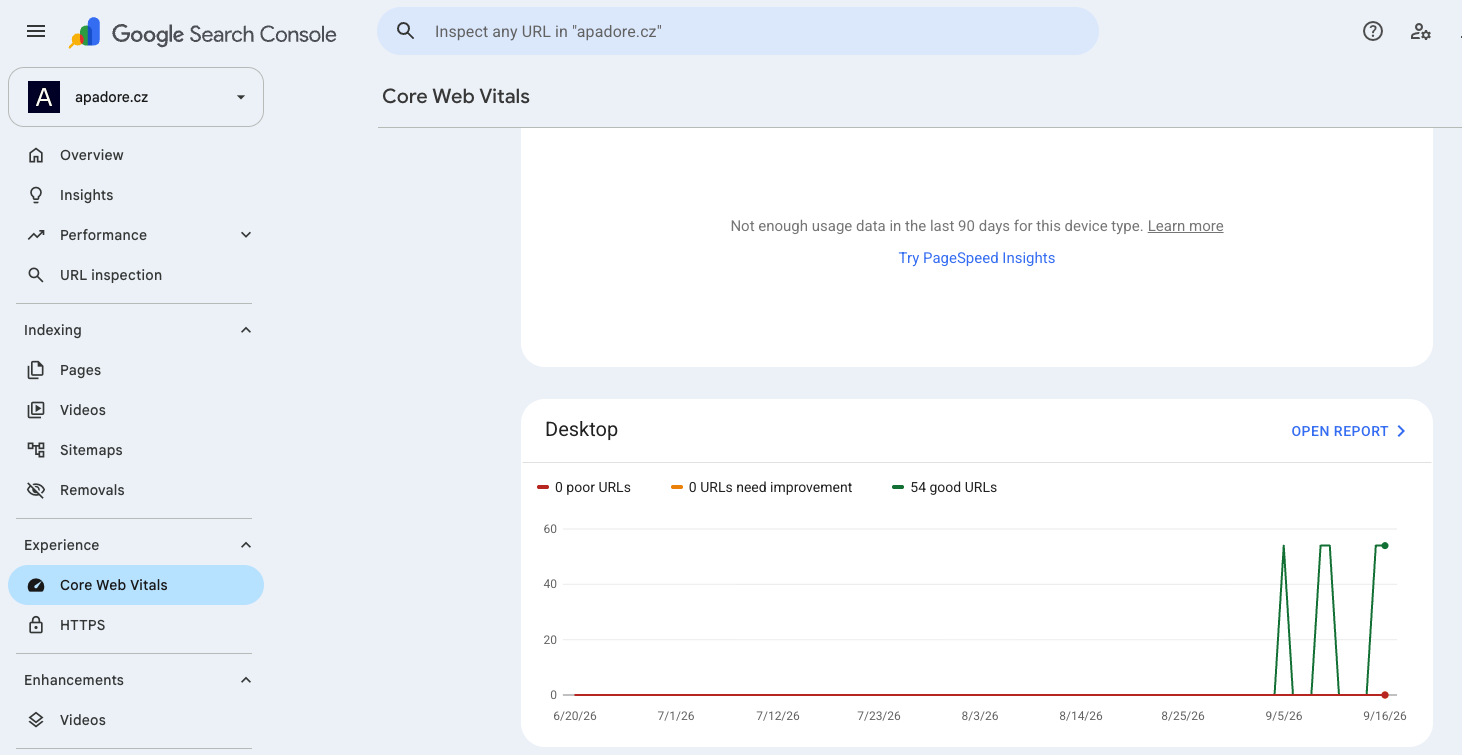
And this real-world data—not lab scores—is what Google actually uses as a ranking signal in search. You can find it in Google Search Console in the Core Web Vitals section, or directly below the field report in PageSpeed Insights. If your URL is highlighted in green there, the website is performing exactly as it should.
Google tracks three specific metrics, known as Core Web Vitals:
| Metric | What it measures | Good value |
| LCP (Largest Contentful Paint) | How quickly is the largest visible element on the page rendered? | to 2.5 s |
| INP (Interaction Until Next Paint) | How quickly does a website respond to a click or touch? | to 200 ms |
| CLS (Cumulative Layout Shift) | How much does the content jump around while loading? | to 0,1 |
If these three metrics show up in green in Search Console, you don’t need to worry about a PageSpeed score of 45 or 60. As you can see, Apadore has good speed across all 54 URLs based on data from real users. However, when I run the site through PageSpeed Insights, I see a high score of 50 for performance. Thanks to the information above, I don’t need to worry too much about that.
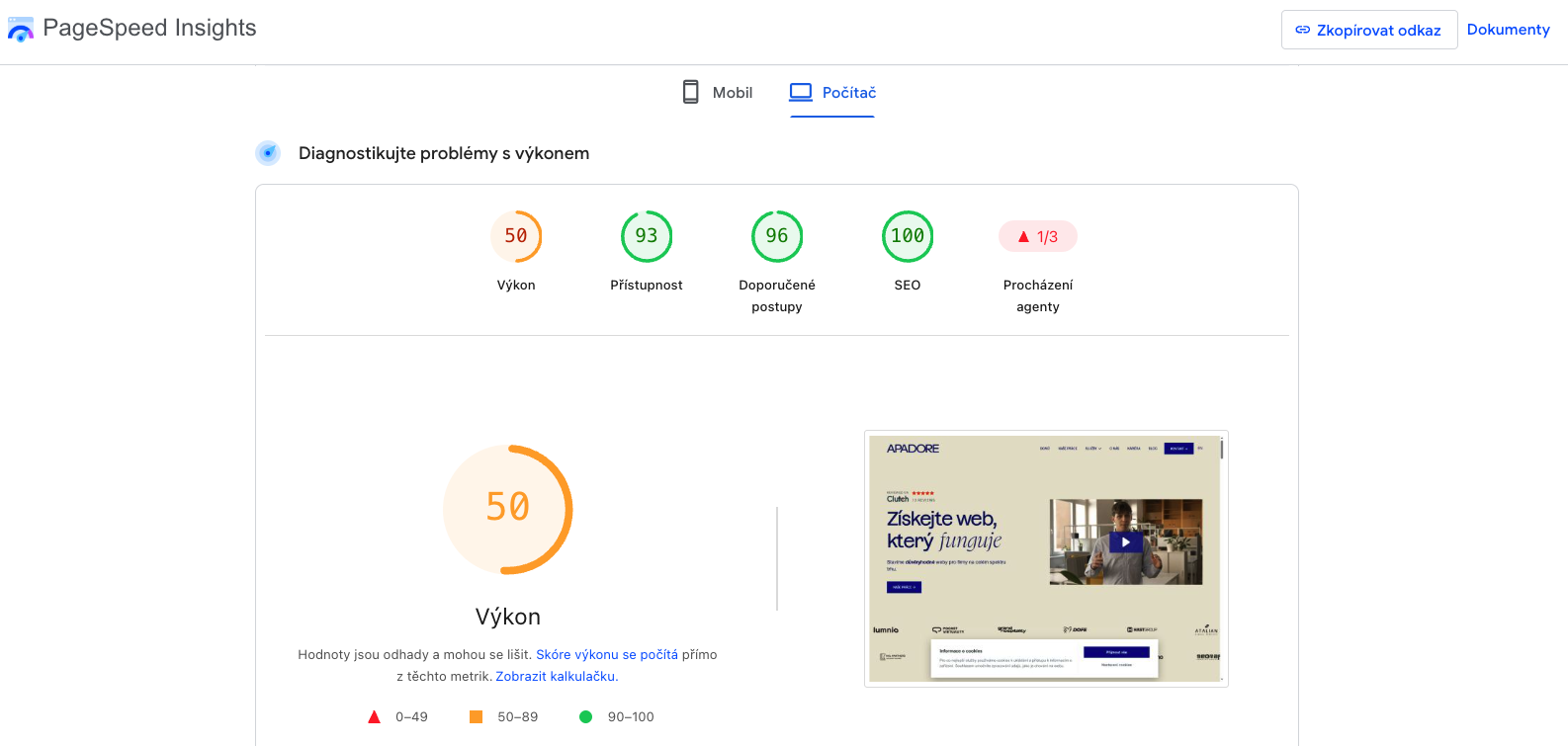
On the other hand, a score of 95 with red Core Web Vitals in real-world conditions is actually worse, even though it looks better at first glance.
10 Steps That Work on WordPress If Your Website Is Slow
You can usually handle these steps on your own, without needing a developer's help:
- Compress the images. The ShortPixel or Imagify plugin converts images to the format WebP, which is smaller than JPEG by 25 to 35 percent while maintaining comparable quality. For a website full of photos, this is the fastest way to achieve a noticeable improvement.
- Set the correct image dimensions. There's no point in uploading a 4000 × 3000-pixel photo for a 400 × 300-pixel preview. The browser will download the entire file anyway and just resize it.
- Enable lazy loading. The images below the first screen load only when the visitor scrolls down to them. WordPress has supported this natively since version 5.5; just make sure the theme doesn't disable it.
- Add a caching plugin. WP Rocket or the free WP Super Cache caches a pre-rendered version of the page so it doesn't have to be rebuilt every time a visitor comes to the site. Set the cache expiration to at least 24 hours.
- Delay third-party scripts. The Perfmatters or Flying Scripts plugin can delay the loading of Google Analytics or the Facebook pixel until the user begins to interact with the page. Visitors won't notice the difference, but the website will load faster.
- Clear the database. WP-Optimize deletes old post revisions, spam comments, and temporary data that have been accumulating for years and slowing down database queries.
- Get rid of plugins you don't use. Every active plugin—even one that isn't currently doing anything—adds code in the background that has to be loaded. A quarterly review is sufficient.
- Minify CSS and JavaScript. Autoptimize or a component of a caching plugin removes unnecessary spaces and comments from the code and combines multiple files into one.
- Turn on the CDN. In its free version, Cloudflare delivers static content (images, styles) from a server near your visitor, not from a single location on the other side of the country.
- Check your hosting. If you're on the cheapest shared hosting plan and your website gets more than a few hundred visits a day, this is usually the limit that plugins can't exceed.
10 Steps for Shoptet and Other E-Commerce Solutions
Shoptet has an advantage over WordPress: it handles hosting, basic caching, and security for you. Still, there are quite a few settings you’ll need to configure yourself, and that’s where it’s decided whether your e-shop will fly or just barely keep up.
- Upload images in WebP format. Shoptet supports this format, but it doesn't automatically convert the images for you every time you upload them. For bulk product imports, this means you need to prepare the images in WebP format before uploading them to the admin panel.
- Make sure the product photos are high-resolution. For the product gallery, simply 1200 px on the longer side, for a preview in the category 600 px. Full-resolution supplier photos (4000 px) unnecessarily slow down every category page.
- Enable lazy loading in the template settings. Shoptet offers this feature, but it isn't enabled automatically for older templates. Check this in E-shop Settings → Appearance.
- Limit the number of products on the category page. A catalog with 500 products and pages organized in sets of 100 means that 100 images and descriptions are rendered at once. Reducing this to 24 or 48 products per page will noticeably speed up the category page.
- Reduce the number of tracking and marketing scripts. Google Analytics 4, Facebook Pixel, Seznam Sklik, Heureka Verified by Customers, Zboží.cz, Glami. Everyone adds their own code. Consolidate what you can using Google Tag Manager, and track only key events (added to cart, completed order), not every click.
- Load reviews and recommended products asynchronously. Widgets such as Heureka Reviews or Zboží.cz Ratings unnecessarily slow down page rendering if they load immediately. Most of them offer an option that loads only after the main content is displayed.
- Don't go overboard with live chat on every page. Scripts like Smartsupp or Tawk.to are tens to hundreds of kilobytes in size. Consider whether you need them on your product page and blog, or if they’re only necessary on the checkout page and the contact page.
- Check the redirect. Renamed categories and deleted products that involve two or three consecutive redirects add an unnecessary round of communication with the server to every page load. Shoptet displays the redirect history in the admin panel.
- Take advantage of the built-in cache. Shoptet automatically caches pages, but if you're using third-party extensions, make sure they don't conflict with the cache and display outdated content instead of current prices.
- Monitor Core Web Vitals in Google Search Console. Shoptet won't tell you on its own how you're performing with real customers. The only way to find that out is through Search Console, linked to your domain.
From Real-World Experience: Why the Panic Over Scores Is Often Just a False Alarm
A typical scenario we encounter with clients: An e-shop adds a review widget, live chat, and a new remarketing pixel over the course of several weeks in a row. The PageSpeed score drops from 65 to 40, and the owner receives an email from a colleague or agency with an exclamation point in the subject line.
However, when we look at Search Console, the field data for the same website over the past month shows only a slight deterioration in LCP—on the order of a few tenths of a second—and all three Core Web Vitals remain in the „Good“ range. The conversion rate has not changed. Visitors didn’t actually notice the deterioration because it fell within a range that the human brain doesn’t perceive as a wait.
That doesn’t mean we’re giving up on third-party scripts. It means that the decision about what to remove and what to keep is based on what the real-world data shows, not on the color of the circle in PageSpeed Insights. A widget that actually extends LCP beyond 2.5 seconds goes. A widget that merely lowers a nice-looking number in a lab test but doesn’t affect real-world data can stay, as long as it serves a business purpose.
When Can You Take a Break from Worrying About Website Speed?
Chasing a score of 100 on PageSpeed Insights is usually a waste of time. A simple text page without a single script can easily score 100 points, but no real-world business website or online store is—or should be—that bare-bones. Instead of aiming for 100, focus on these four things:
- Core Web Vitals in Google Search Console are showing green on most URLs, especially on product pages and in categories—not just on the homepage.
- LCP is under 2.5 seconds, INP is under 200 milliseconds, and CLS is under 0.1 at the 75th percentile—that is, for three-quarters of visits—not just on average.
- The conversion rate is not declining. If the website continues to sell as well as it did before, there’s no reason to chase after more conversions just for the sake of a number in a report.
- The improvement between individual tests is in the range of a few points. A variance of 5 to 10 points between two runs of the same test is normal noise, not a sign that something went wrong.
Once these four points are in place, further optimization yields less and less in return for more and more work. It’s worth investing that time elsewhere, such as in SEO or to UX and UI.
When Is It Time to Call in the Experts?
A website owner or in-house marketer can usually complete the steps above in a single afternoon. However, some situations require a developer:
- Core Web Vitals in Search Console have been in the red for a long time even after optimizing images and enabling the cache. The problem then lies deeper, typically in the template code or in the database queries.
- You need to adjust critical rendering paths (critical CSS, font preloading, HTTP/2, or HTTP/3)—these are server- and code-level optimizations, not settings in the admin panel.
- The database contains millions of records And even simple queries take seconds. This calls for a restructuring at the development level, not a cleanup plugin.
- The website is based on an outdated template and a decade's worth of accumulated modifications. At that point, optimization is like repairing a car that would be better off being replaced. New custom website It's usually cheaper than endlessly patching up the old one.
Frequently Asked Questions
What are the main causes of slow-loading web pages?
The most common culprits are uncompressed images, third-party scripts such as analytics or live chat, a missing cache, and inadequate hosting. Images are usually the number one culprit, as they account for the majority of the data transferred on product and catalog pages.
What plugins do experts recommend for speeding up WordPress?
For images, use ShortPixel or Imagify; for caching, use WP Rocket or the free WP Super Cache; for deferring third-party scripts, use Perfmatters or Flying Scripts; and for database cleanup, use WP-Optimize. However, no plugin can replace quality hosting if the server itself is underpowered or the website isn’t built well.
Is a low score on PageSpeed Insights always a problem?
It isn't. The PageSpeed score is generated through a lab test on an artificially slowed-down device and often differs from what real visitors experience. The key factor is the real-world data in Google Search Console: if Core Web Vitals are green there, you don’t need to treat a low PageSpeed score as an urgent problem.
Which companies in the Czech Republic offer website speed optimization?
Website speed is handled by specialized developers and web agencies that build custom websites or online stores. At Apador, we handle speed optimization as part of our management services for WordPress websites and Shoptet e-shops, typically as a follow-up service after a website launch or redesign.
How can I speed up my website using a CDN service?
A CDN (Content Delivery Network) delivers static content—such as images, styles, and scripts—from the server geographically closest to your visitor, rather than from a single central server. Cloudflare offers a fully functional free version that you can set up in just a few minutes and that also provides basic protection against attacks.
Conclusion
Ultimately, website speed isn't about who has the prettier green circle in PageSpeed Insights. It's about whether a visitor will wait for what they're looking for and whether the site freezes up while they're shopping. Measure the right metrics, fix what’s actually causing problems, and leave the rest alone.
Not sure exactly where your website or online store is losing speed, or what you should tackle first? Contact us, we'll take a look at your specific metrics in Search Console, analyze your website's conversion rate, and let you know whether a few tweaks will suffice or if it's time for a more in-depth overhaul.
Are you worried slow web?
We'll identify what's actually slowing down your website or online store and propose a customized solution.