Google Search Console now measures the reach of Instagram, TikTok, X and YouTube on Google
A company’s Instagram/YouTube account gets fifty thousand views a month. Clear numbers, a nice chart, a good feeling. But how many of those people came because they found the post through Google? Until recently, nobody knew.
Google has been showing your social media posts in search results for a long time. You see them in images, in videos, in the News section. But only Google had the data on it.
That has changed. Search Console can now measure Instagram, TikTok, X and YouTube, and since July 29, 2026, the feature has been available to everyone worldwide. Let’s look at what exactly it shows, what it doesn’t, how to set it up and what you can get out of the data.
What are platform properties
Platform properties are a new type of property in Google Search Console. Alongside the usual website property, you can now add a social media account and track how its content performs in search.
Google announced the feature on July 7, 2026 and rolled it out gradually at first. Three weeks later, on July 29, it made it available to everyone and also published a guide on how to work with the data.
There are four supported platforms: Instagram, TikTok, X and YouTube.
You’ll see data from three sources: regular Google Search, the Discover feed and Google News. The last two only show up in your reports if your content actually gets some traffic from them.
Interestingly, you can use this feature even if you don’t have a website at all. Search Console is no longer a tool just for website owners; now it’s for influencers too.
What doesn’t Google Search Console measure?
This is the most important sentence in the whole article, and it’s easy to miss in the excitement about the new feature.
Platform properties only show how your content performs in Google Search. They don’t track how many times people saw it on the platform itself.
So when a hundred thousand people watch your TikTok video right in the app, Search Console knows nothing about it. It only cares about the part of your audience that reached you through search.
So it’s not a replacement for each network’s own analytics. It’s an add-on that answers a question native stats can’t: how many people found our content through Google, and what exactly they were searching for.
For smaller accounts, the numbers will probably be low. That’s not a measurement error, it’s reality. And it still makes sense to track them, because they show something you won’t find anywhere else: which words brought people to your content.
How to set up a platform property step by step
The whole thing takes a few minutes, and you don’t need a developer or any changes to your website. Before you start, have the login details for the account on that network at hand. Verification works by signing in to the account and allowing the connection, so you need admin rights for it.
1.Open Google Search Console at search.google.com/search-console and sign in with the Google account you want to manage the data under.
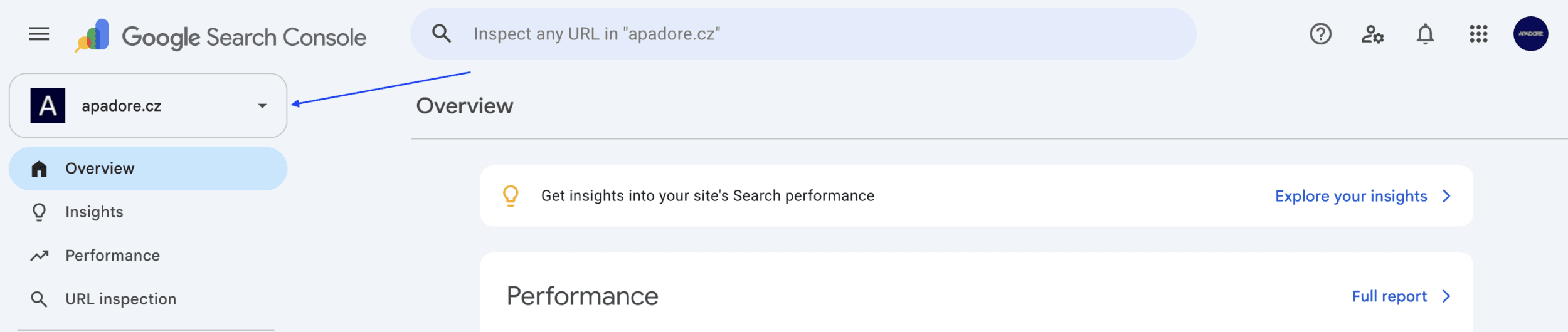
2.Start adding a property. Either choose to add a new property on the start screen, or open the property list in the top left corner anywhere in the interface and click Add property.
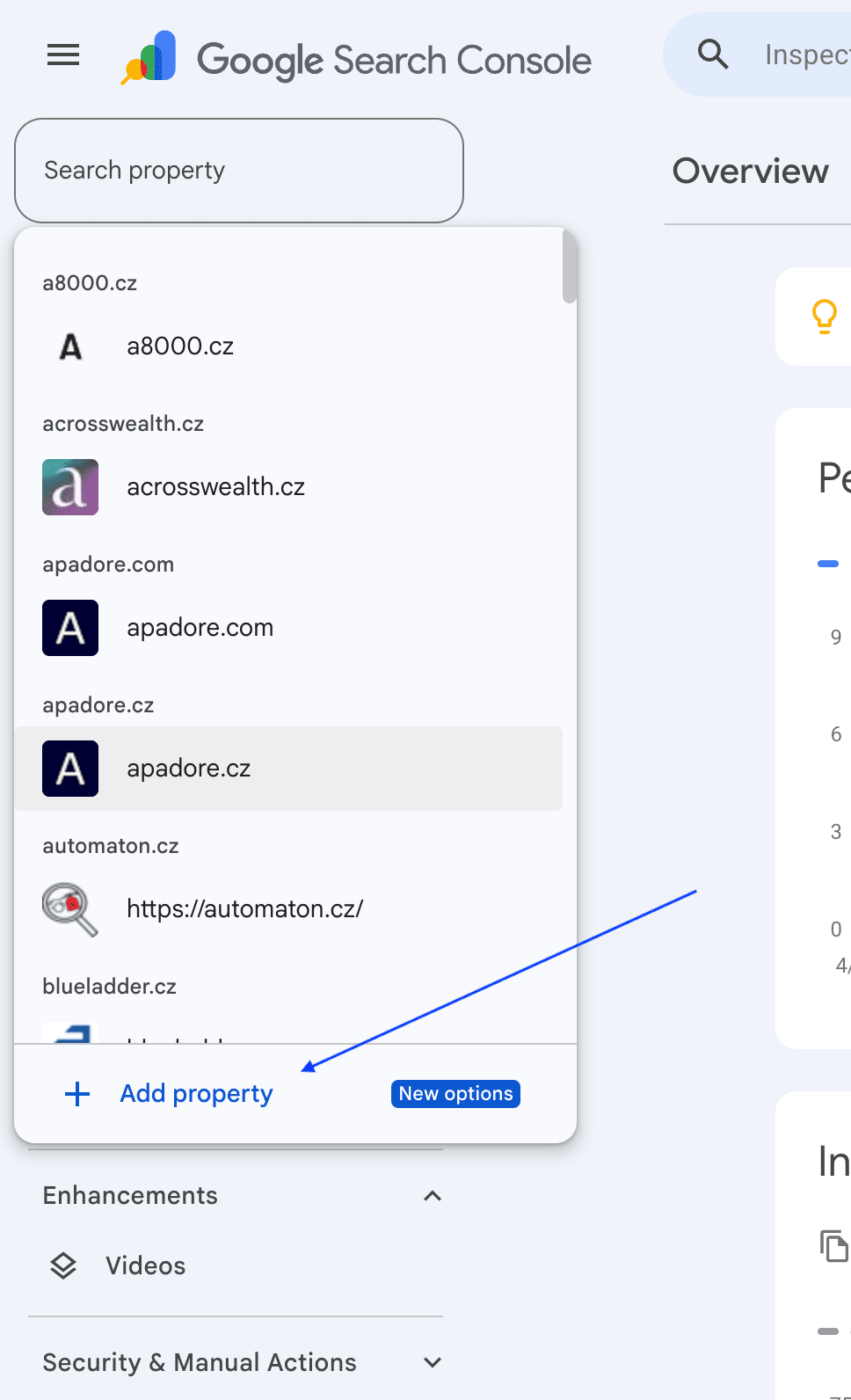
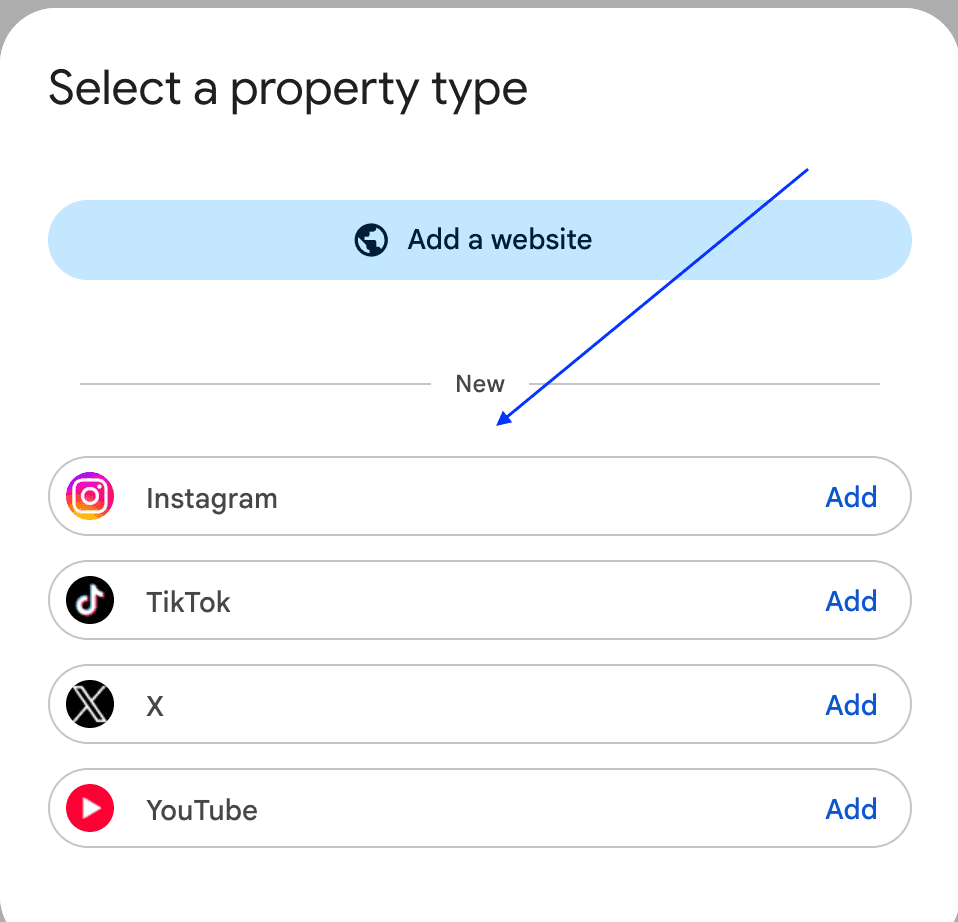
3.Choose the platform. In the list of supported options, you’ll see Instagram, TikTok, X and YouTube. Click Add next to the one you want to connect.
- Verify ownership. Google redirects you to sign in to that network. There you confirm that Search Console may read your account’s performance data. You don’t paste any code anywhere.
- Finish the setup. After successful verification, you’ll see a confirmation. Click Go to property and you’re done.
- Repeat for each account. Instagram, TikTok and YouTube are three separate properties. The same applies if you manage several profiles on one network.
Once you’re done, you’ll see the new property in the list next to your websites. You switch between them just as before.
What to do when something doesn’t add up
- The charts are empty. After setup, it takes a few days for data to be collected and processed. In the first days, you’ll only see partial data for the period since you connected the account, not past history.
- The platform isn’t offered in the list. Try again in a few days. The rollout was gradual, and some accounts get the new version of the interface with a delay.
- Verification failed. Make sure you’re signed in with an account that has admin rights to the profile. This is a common stumbling block for company accounts, because access often belongs to someone other than the person who manages Search Console.
- You’ve set up a Search profile before. Then the data for that platform should be available right away, with no waiting.
Three reports you get
Performance
The familiar interface from website properties. You’ll see total clicks and impressions, average click-through rate and average position in search.
The most valuable part is filtering. You can find out which specific posts bring the most traffic and for which queries they appear. The data can be exported, so you can also work with it outside Search Console.
Insights
An overview of trends, your best-performing content and how people discover you on Google. This is where you get to query groups that are growing or, conversely, fading.
Achievements
Milestone tracking, for example reaching a certain number of clicks from search over the last 28 days. More a motivational feature than an analytics tool, but handy for long-term content work.
The default period for both Insights and Performance is 28 days.
Five things you can do with the data right away
Along with the global launch, Google released an analysis guide. Here are the approaches from it with the fastest payoff.
1. Find out what your audience actually searches for on Google
In the Insights report, you’ll find query groups split into top, rising and declining. Once you know people come to your video through a specific topic, you have material for the next episode, for the caption and for choosing hashtags.
This is a major shift. Until now, on social media you mostly worked with what performs inside each network’s algorithm. Now you can also see the intent people bring when they come to you from search.
2. Catch a post that has just started to take off
A filter for the last 24 hours shows sudden spikes in Google traffic to fresh posts. If you catch such content in time, you can boost it elsewhere right away: share it on other networks, mention it in your newsletter or follow up on it.
3. Compare platforms side by side
Each platform is a separate property, so you can’t compare them directly in the interface. But you can export their data into one spreadsheet and see which channel actually brings you the most people from search.
That’s the kind of information that can reshuffle a budget. Especially when you find out that the platform you put the most energy into is the weakest one from Google’s point of view.
4. Revive older content that is catching on again
Search Console reveals older videos or posts that started getting search traffic again after months. Content like that is worth pinning to your profile or turning into a part two.
It’s the same logic you know from websites. Updating content that has already worked once is usually cheaper than creating something new.
5. Measure the impact of changes to titles and captions
Search Console supports annotations. When you rewrite a YouTube video title or a TikTok caption, note the date. After a few weeks, you’ll see in the chart whether it had an effect.
That turns caption optimization into a measurable discipline instead of guesswork.
What to watch out for
Three things that will confuse you when you first look at the data.
- The numbers in the Insights report may not add up. The summary card at the top counts all clicks from Google, including images, videos and news. The lists below it, however, only cover regular search. So the sum of the cards can be lower than the headline number. It’s not an error; they’re two different views.
- The connection can break. Google verifies ownership regularly. When the login on the network’s side expires, access to the property is paused until you restore the connection. The data isn’t lost, though: after verifying again, you’ll see the same reports.
- A new property shows nothing for a few days. Empty or incomplete charts in the first days are normal, not a fault.
What this means for businesses
At first glance, it looks like a small thing for content creators. In reality, it’s another step in the direction search has been moving for several years.
Visibility stopped ending at your website long ago. People look for answers in AI summaries, on social media and in videos, and Google serves them all together. By opening up social media data, it essentially confirms that it considers social networks part of search.
For businesses, this leads to three practical conclusions:
- Captions and titles on social media are text you can optimize. They’re not just add-ons to an image. They decide which queries your post shows up for.
- Social media and websites are no longer separate worlds. Measurement now sits under one roof, so strategy should be shared too.
- There’s a new metric you can base a budget on. Instead of guessing whether making videos is worth it, you have numbers on how many people found them through search.
We covered how to optimize for AI search in our article on GEO, AIO and AEO. You can then evaluate your results in Bing, which has started showing which pages it cites in AI answers.
Frequently asked questions
Which social networks does Search Console support?
Instagram, TikTok, X and YouTube. Each account is added as a separate property, so if you have profiles on several networks, you need to repeat the process for each of them.
Do I need my own website for this?
No. You can add a platform property even if you don’t have a website. For the first time, Search Console is opening its doors to creators who publish exclusively on social media.
Does Search Console show how many people saw my Instagram post?
No. It only measures how content performs in Google Search, the Discover feed and Google News. It doesn’t track views inside the network’s app; for those, keep using the native stats.
How long does it take for data to appear?
A few days. Empty charts right after setup are normal. At first, you’ll only see partial data for the days since you connected the account; the full picture fills in later.
Since when is the feature available?
Google announced it on July 7, 2026, and rolled it out gradually. Since July 29, 2026, it has been available worldwide to all Search Console users.
What happens if the connection breaks?
Access to the property is paused until you verify ownership again. But the data isn’t lost. Once the connection is restored, you’ll see the same reports and won’t have to wait for data to be collected again.
Can I compare Instagram and TikTok performance side by side?
Not directly in the interface, because each platform is a separate property. But you can export the data from each property into one spreadsheet and compare them there.
Can someone help me with setup and evaluation?
You can handle the connection itself in a few minutes on your own. But if you want to turn the data into a content strategy, get in touch. At Apadore, we work on visibility across channels, from websites and search all the way to AI answers.
Key takeaways
Connecting your accounts takes a few minutes and costs nothing. Even if your numbers turn out low, you’ll learn something you didn’t know before: which words bring people to your content on Google.
Don’t expect a replacement for native stats. Expect an answer to a different question: how much of your audience comes to you from search and what exactly they were looking for.
The most sensible first step is to connect your accounts now and see what the data shows in a month. Data is only collected going forward, so the sooner you start, the sooner you’ll have something to work with.
Want people to find you across channels, not just on your website? Get in touch and we’ll go through where people see you today and where you’re missing.
But Search Console isn’t just for measuring social media reach. The same tool also shows Core Web Vitals, field data on website speed from real users. We explain how to read them and what to do with them in our article on speeding up your website.
You know how to measure reach, but how do you grow it through trust? You’ll find a practical overview of trust signals in our article What is E-E-A-T and how to build it.
 Daniel FišerSEO and Analytics Specialist
Dan has been helping companies grow through SEO, analytics and UX for over 7 years. He believes a successful website has to work for both algorithms and real people. At Apadore he is in charge of the overall visibility strategy: from traditional Google search to optimisation for AI assistants, which is key to a company's success today. He studied marketing management at the Prague University of Economics and Business and previously honed his know-how for brands such as Alza.cz and the family business Klenotnictví Dušák. When he isn't analysing data, he lifts weights, plays badminton or travels.
You might also like
 Structured Data: What It Really Brings to a Company's Website and Online Store TodayA customer searches Google for a specific coffee maker. Below the search results, they see two online stores. The first one shows only a title and a…
 Does the internet know about your company? This 2-minute test will tell youIt takes two minutes, and it’s the fastest way to find out if the internet even knows you exist. Most companies haven’t tried it yet, even though this is…
 AI agents are shopping for your customers. Is your e-shop ready?If you open Google Analytics now, you’ll notice a traffic source that wasn’t there at all back in the spring: chatgpt.com. There aren’t many visits, just a few…